Client Group: A Managed Entity Architecture
Managed Entities models households, corporations, and trusts the way they actually exist, so your notes, tasks, documents, and workflows stay organized without duplication.
Most advisor software assumes a simple world: one household equals one record.
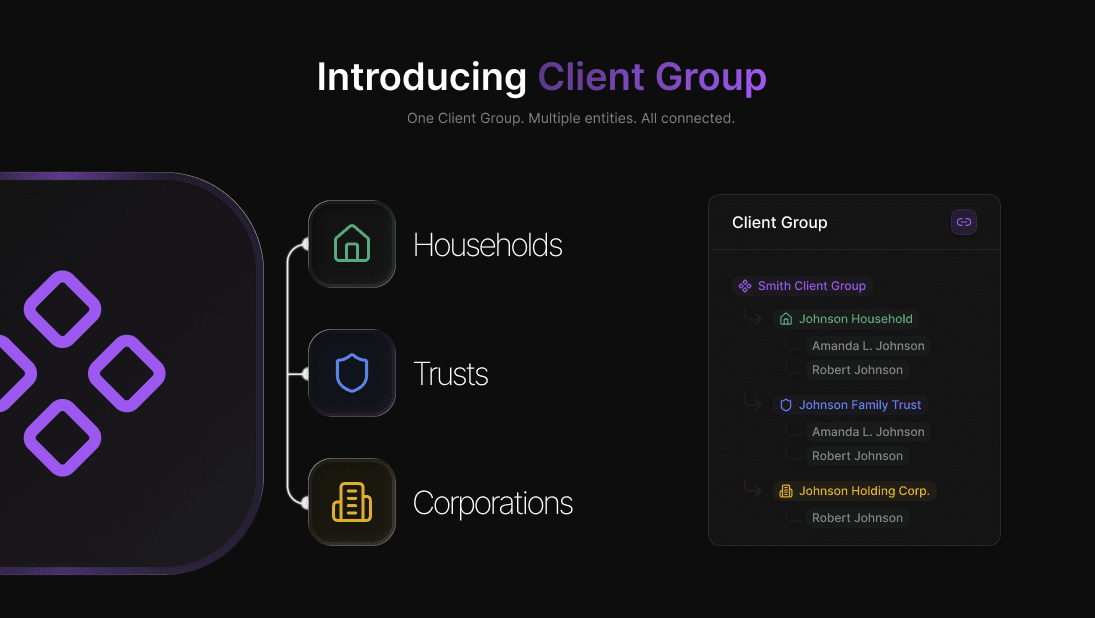
Real practices are not built that way. A single relationship can include a household, one or more corporations, and one or more trusts, all sharing people, responsibilities, and documents.
Managed Entities is the foundation in Advisor Terminal that models those structures the way they actually exist, so your notes, tasks, documents, and workflows stay organized without duplication.
In this guide:
- What Managed Entities is
- How households, corporations, and trusts stay connected
- How entity groups and linking work
- How this improves day-to-day operations, including meeting notes and compliance
- How to set it up in your practice
What is Managed Entities?
Managed Entities is the way Advisor Terminal represents the real-world structures you manage.
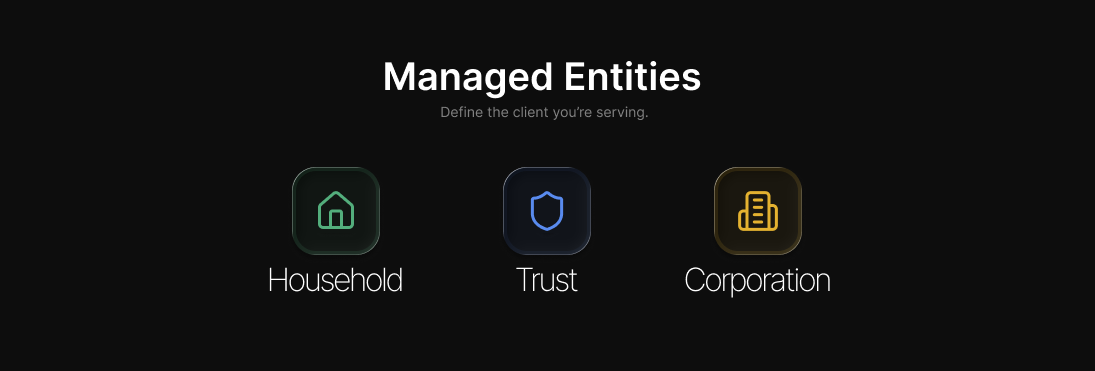
Today, that includes:
- Households
- Corporations (operating companies, holding companies, investment companies, and other corporate structures)
- Trusts (multiple trust types)
Each entity gets its own record, with the right context for that entity type, while still staying connected to the broader relationship.
Why it matters
When your system forces everything into silos, you end up doing the "relationship mapping" manually:
- In your head
- In notes
- In duplicated records
- In spreadsheets
- Through team tribal knowledge
Managed Entities is designed to remove that friction so the platform matches how you actually run your practice.
What it changes in practice:
- Less duplication: fewer repeated notes and documents
- Cleaner compliance: meetings that touch personal and corporate topics can be recorded properly across the right entities
- Better navigation: you can view and work at an entity level or a group level, depending on what you are doing
- More intuitive operations: tasks, documents, and notes live where they belong, without losing the big picture
The building blocks
1) Entities
Entities are the practical structures you manage: households, corporations, and trusts.
Each entity stands on its own, so you can store the right information in the right place, not buried in generic fields.
2) Entity people and roles
People can appear across multiple entities, often with different responsibilities.
Advisor Terminal supports a wide range of role types, so you can reflect real-world relationships like decision-makers, signing authority, trustees, beneficiaries, and more.
The benefit is simple: your team stops guessing who is connected to what.
3) Entity Groups
Groups are how you organize and view a relationship from the top down.
You can create a group, name it, and treat it like a relationship container. Then, entities can be part of a single group view that reflects the full structure; a household, a corporation and perhaps a trust too.
4) Entity Linking
Entity Linking is what connects entities into a group.
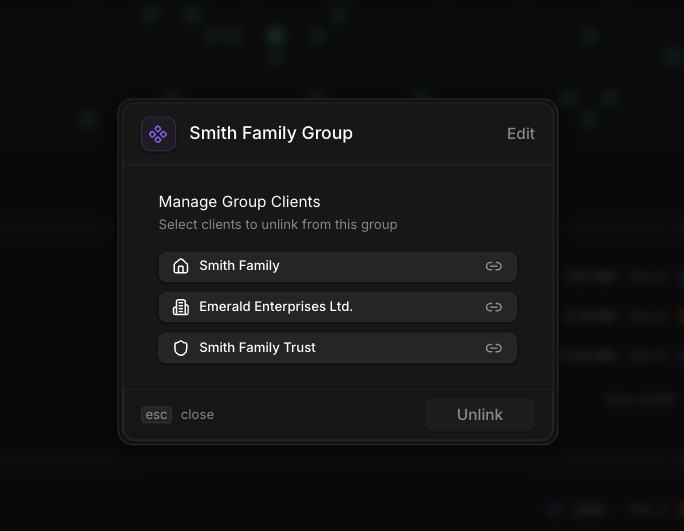
You link entities using a dedicated link action, then view them together in a group lens where you can:
- Expand and review the hierarchy
- See related work at the group level
- Work with a relationship as a whole, not only as separate records
This is where the "big picture view" becomes practical.
What this unlocks day to day
Meeting notes that match how meetings actually go
Many meetings cover more than one entity for a client.
With Advisor Terminal, you can create a single meeting note and link it to:
- The person involved in the household context
- The corporation or trust discussed in the same conversation
This keeps your record clean and reduces the compliance risk of having corporate discussions stored only under a personal file.
Group-level visibility
When you operate from a group view, you can see:
- Documents across the relationship
- Tasks across the relationship
- Work and activity in one place, rather than jumping entity to entity
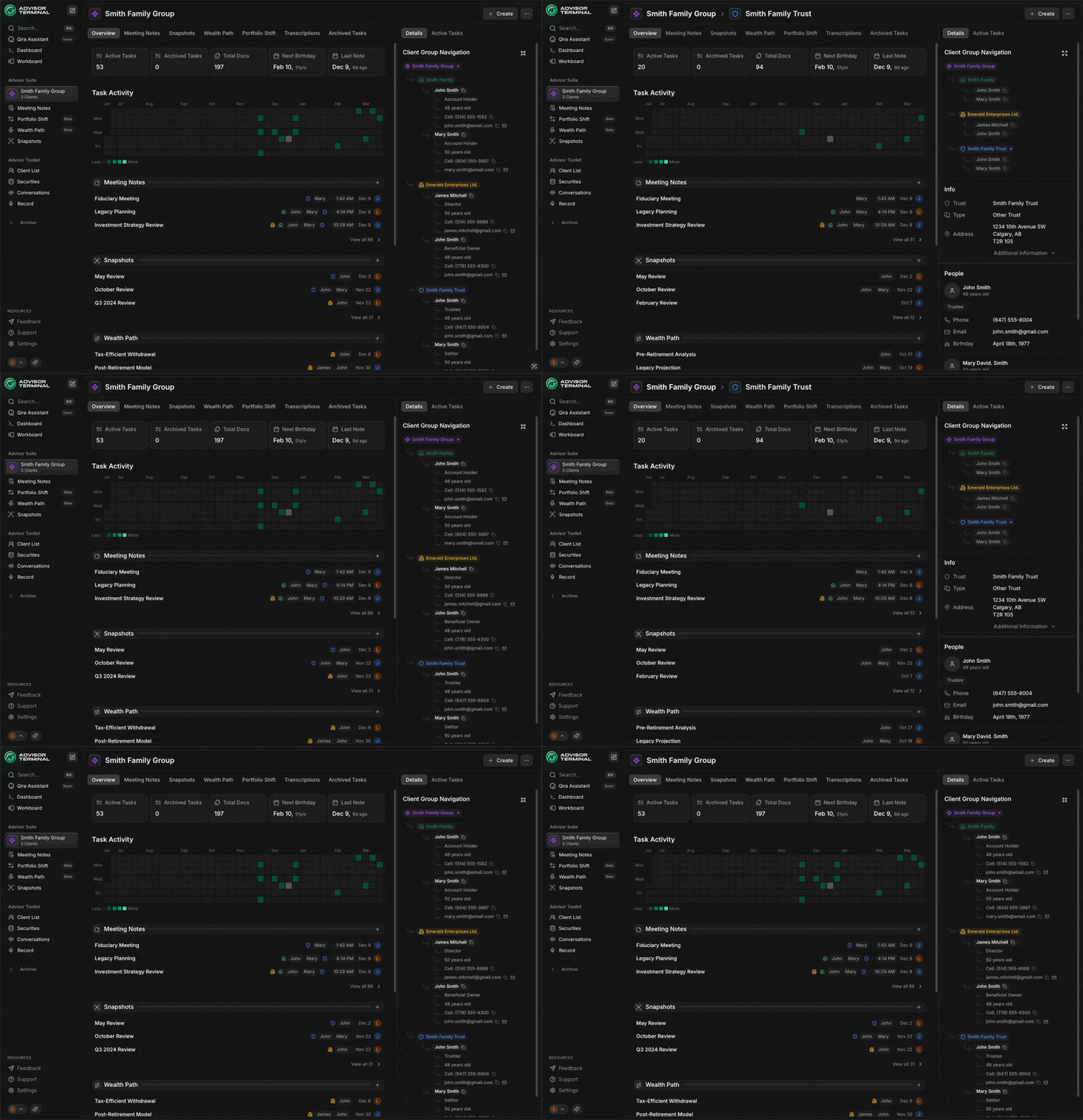
This is especially useful for complex relationships where the household and corporate structures are tightly connected.
How to set it up
A simple setup flow that works for most practices:
Create the household entity Start with the core relationship anchor.
Create related corporation and trust entities Add the structures you actively manage.
Add people and assign roles Add the same person across multiple entities when relevant, and set their role per entity.
Link entities into a group Use the link action to connect household, corporations, and trusts into a named group.
Work from the right lens Use entity view when you are doing entity-specific work. Use group view when you want relationship-level context across tasks and documents.
Privacy and visibility controls
Managed Entities also supports real practice privacy needs.
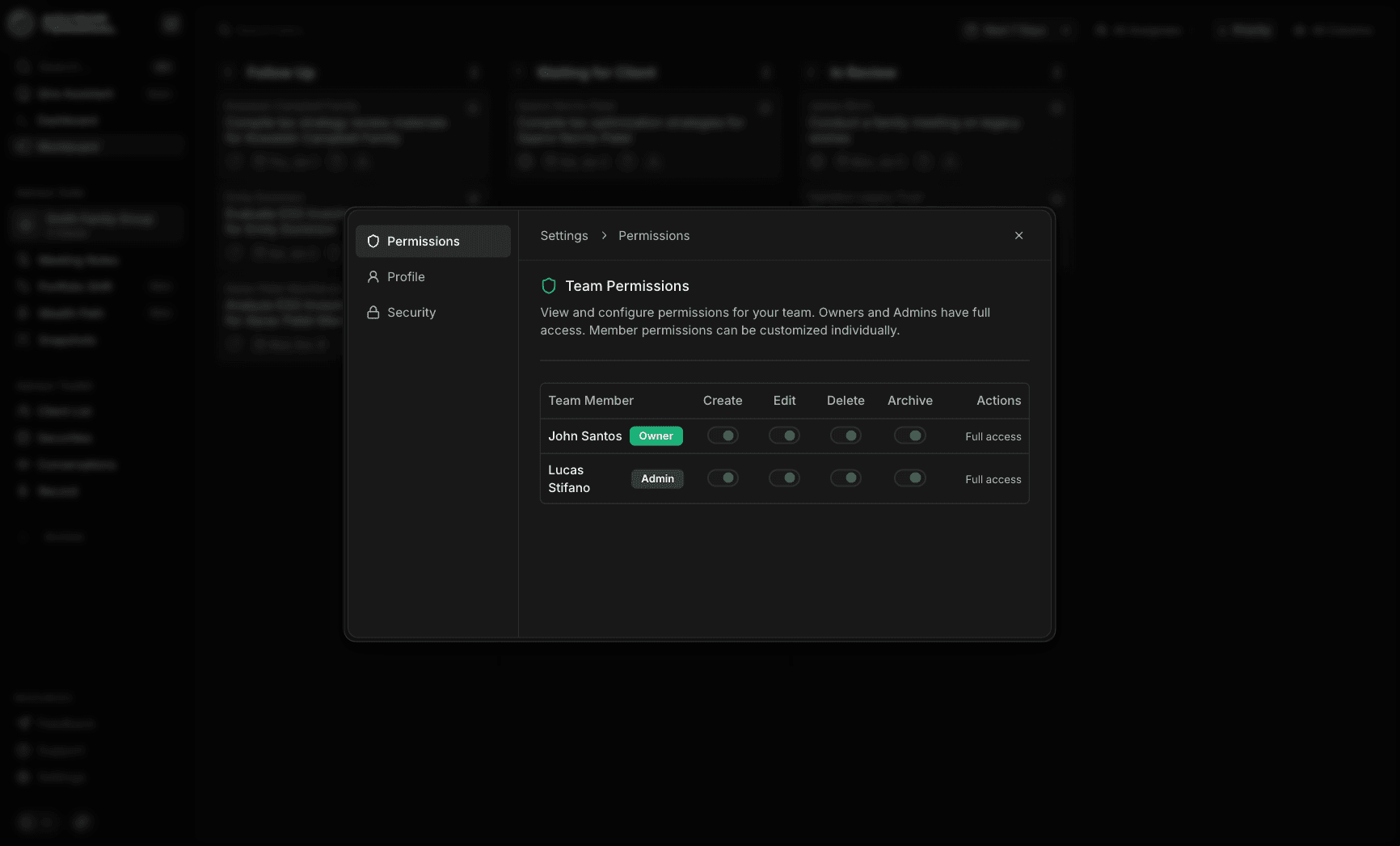
Practice owners and designated administrators can hide specific entities from selected practice members. When an entity is hidden:
- The entity does not appear to that member
- Related tasks, documents, and activity do not appear either
- It behaves as if the entity does not exist for that user
This is useful when a practice owner manages personal or family entities inside the same practice but does not want staff to see them.
Best practices
Model the relationship early Build the household and key entities during onboarding instead of waiting for "later."
Use group view for relationship work If you are doing planning, reviewing history, or coordinating next steps, work at the group level.
Assign roles as you learn them Role clarity prevents downstream confusion and paperwork mistakes.
Link meeting notes to the entities discussed This keeps files clean and reduces the need for duplicate documentation.
Wrap-up
Managed Entities is a foundational shift: your platform should match the way your practice is structured, not force you into a simplified model.
If you want a quick way to validate it, model one of your most complex relationships: household plus one corporation plus one trust, add the key roles, link them into a group, then try running a meeting note and a task workflow from the group view. That is where the system really clicks.